
Blog and Downloads
Compact 737 Overhead Panel — Setup Guide & Downloads

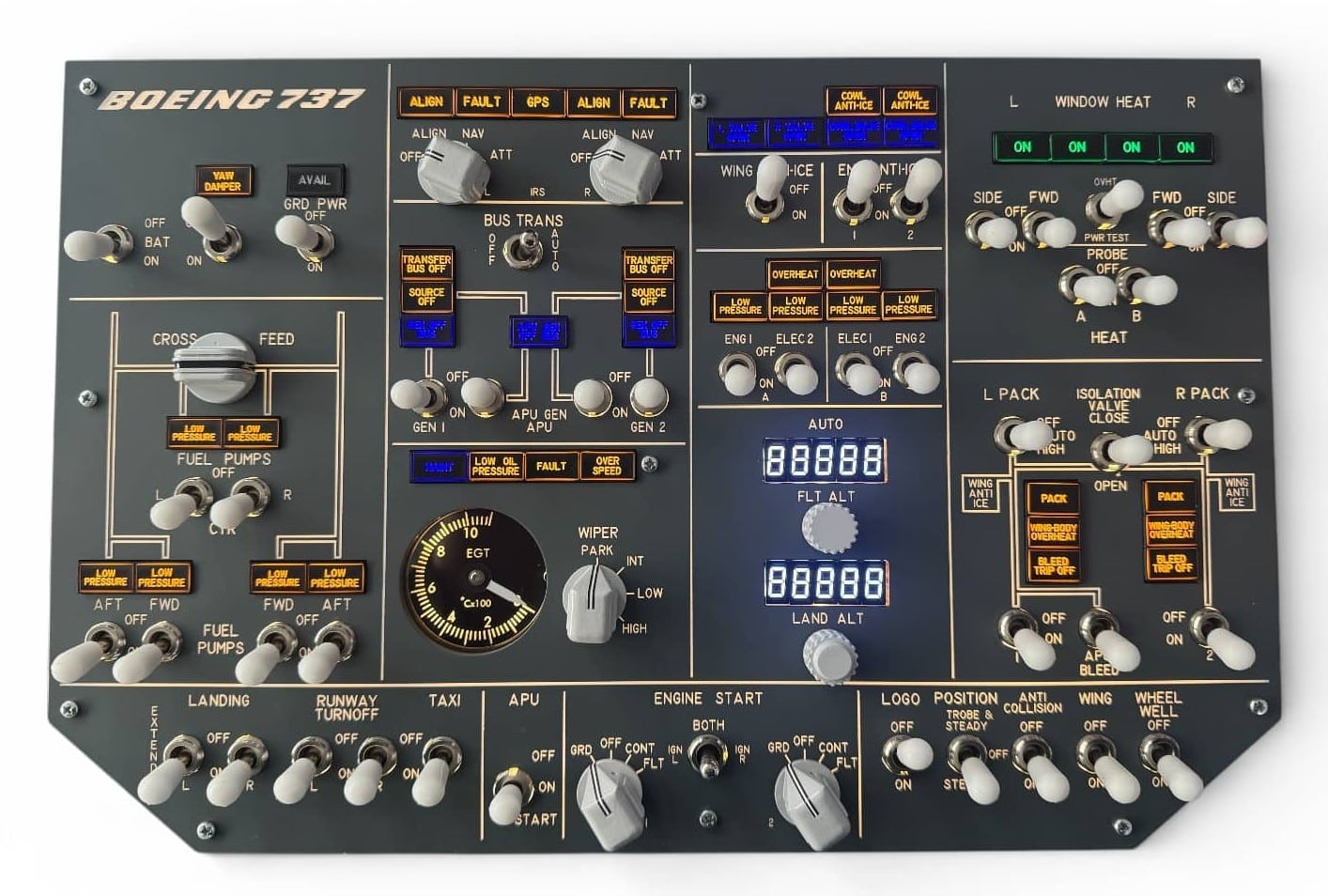
The Compact 737 Overhead Panel brings essential Boeing 737 overhead controls to your home simulator setup without the cost and space requirements of a full-size overhead panel. Designed to cover the most commonly used procedures, it lets you complete your flight checklists hands on, without needing to look up at a virtual overhead in the sim.
Panel Overview
The panel features a variety of real switch types to match the feel of an actual 737 overhead:
- Toggle switches — Battery, Fuel Pumps, Window Heat, and more
- Three-position switches — such as Position Lights (Strobe & Steady / OFF / Steady)
- Spring-loaded momentary switches — GRD PWR, Generators, and APU Start, and OVHT/PWR Test
- Rotary selectors — IRS mode (OFF / ALIGN / NAV / ATT), Engine Start (GRD / OFF / CONT / FLT), and Wiper control
- EGT Gauge — live APU Exhaust Gas Temperature needle
- FLT ALT and LAND ALT displays with dedicated encoders for value adjustment
- Backlight control — adjust brightness manually or sync it with the sim
Supported Simulators & Aircraft
- X-Plane 11 — Zibo Mod
- X-Plane 12 — Zibo Mod
- MSFS 2020 — PMDG 737
- MSFS 2024 — PMDG 737
- MSFS 2020 — iFLY 737
- MSFS 2024 — iFLY 737
- Prepar3D — PMDG 737 NGX
Setting Up Your Compact 737 Overhead Panel with MobiFlight
This panel is compatible with MobiFlight Connector for communicating with your simulator. Below are the essential steps to get up and running with MobiFlight.
1. Install MobiFlight
Download and install MobiFlight Connector. Your panel comes pre-loaded with the correct firmware no board or module setup is needed. Click here to download MobiFlight.
If you ever need to reinstall the firmware, visit our firmware guide: https://coreflighttech.com/mobiflight-firmware-guide
Note: Your panel comes with the firmware pre-installed. You only need to install firmware if your board shows as “Compatible” instead of its device name (e.g. “CFT_B737_C_OVH”) under Extras > MobiFlight Modules.
2. Important Settings
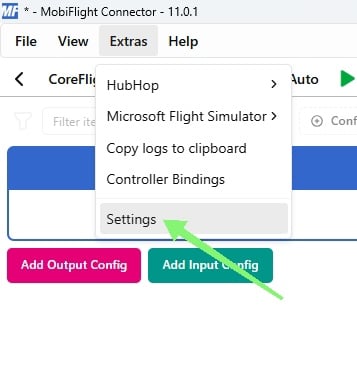
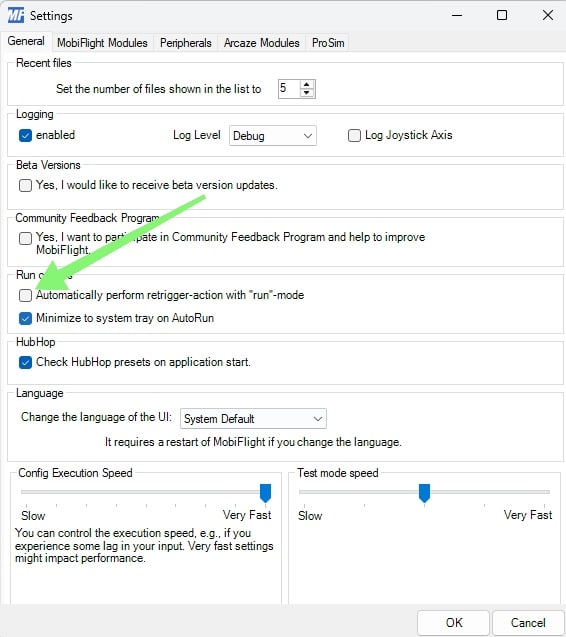
Before loading your config file, go to Extras > Settings in MobiFlight and disable “Automatically perform retrigger-action with ‘run’-mode”. This prevents toggle switches from triggering incorrectly on startup.
3. Load Your Config File
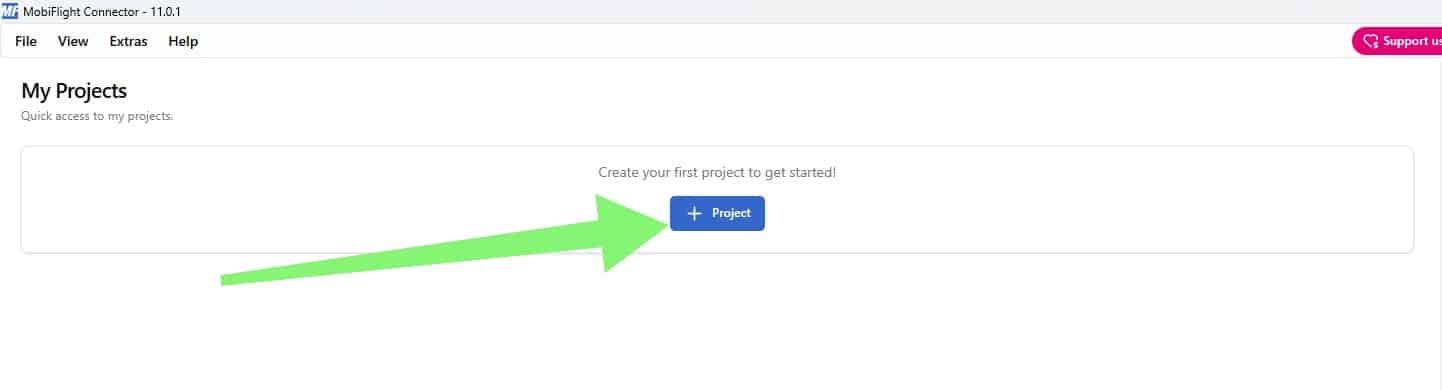
When you first open MobiFlight, you will see the My Projects page with a “Create your first project to get started” message. Follow these steps to load your config file:
Create a New Project
Click the + Project button. A “Create New Project” window will appear. Enter a name for your project, then under “Select the primary simulator for this project”, choose your simulator.
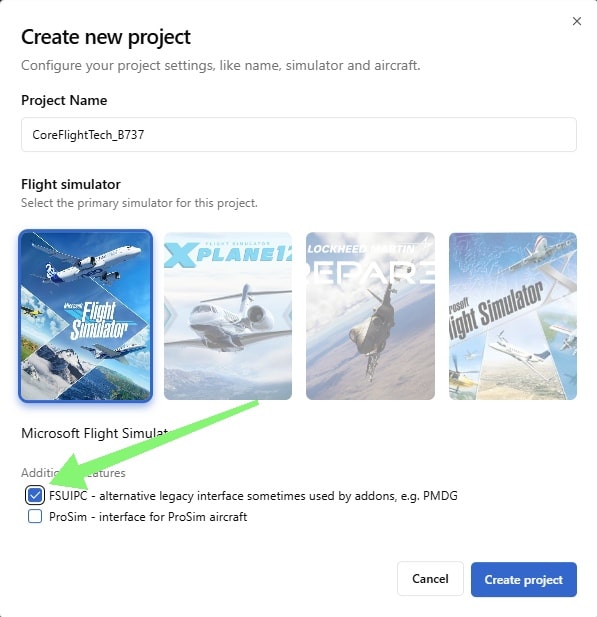
If you are using MSFS, scroll down to “Additional Features” and enable the FSUIPC option. For X-Plane and Prepar3D users, no additional features are needed. Then click Create Project.
Note: FSUIPC is required for PMDG display outputs in MSFS 2020/2024. For installation and setup instructions, visit our FSUIPC setup guide: https://coreflighttech.com/fsuipc-setup
Import the Config File
Download the correct file for your simulator and aircraft:
- X-Plane 11 — Zibo 737 (click to download)
- X-Plane 12 — Zibo 737 (click to download)
- MSFS 2020 — PMDG 737 (click to download)
- MSFS 2024 — PMDG 737 (click to download)
- MSFS 2020 — iFLY 737 (click to download)
- MSFS 2024 — iFLY 737 (click to download)
- Prepar3D — PMDG 737 NGX (click to download)
Note: We recommend starting your simulator and loading into the cockpit before pressing the Run button in MobiFlight. This allows MobiFlight to establish a stable connection with your simulator for reliable operation.
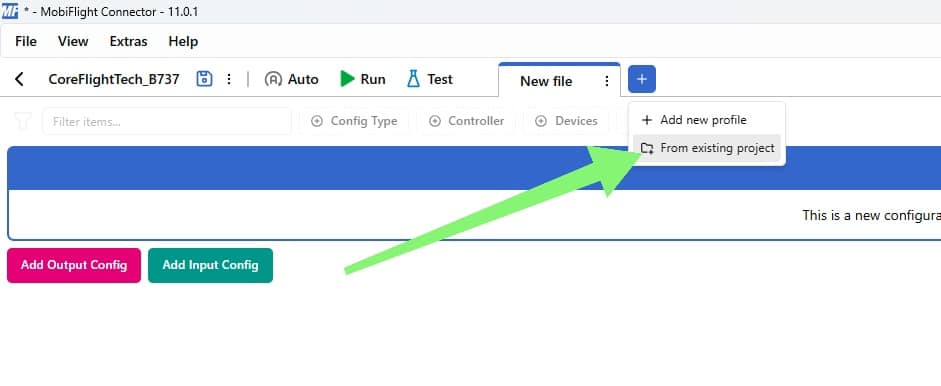
On the next screen, click the + button next to “New File” and select “From Existing Project”. A file browser will open select the config file you downloaded for your simulator.
Backlight Options
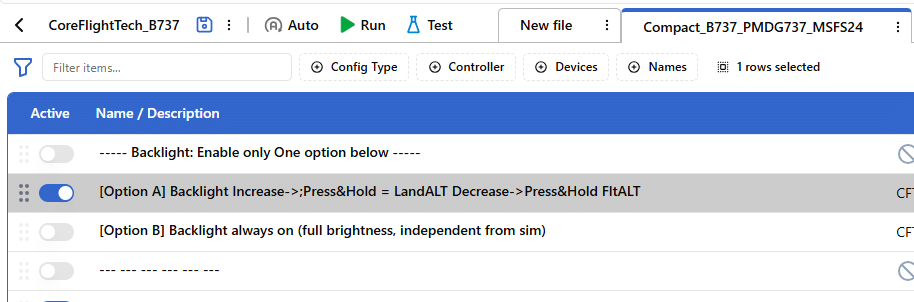
The Compact 737 Overhead Panel includes two backlight modes. Make sure only one option is enabled at a time in the config file to avoid unexpected behavior:
- Option A — Control backlight brightness by pressing and holding the encoders. The backlight level can also be synced with the sim’s electrical state.
- Option B — Backlight is always on at full brightness, independent from the sim.
For Zibo (X-Plane): Press and hold the LAND ALT encoder to adjust brightness. When it reaches full brightness, it resets to zero and continues increasing.
For all other aircraft: Press and hold FLT ALT to decrease and LAND ALT to increase brightness.
EGT Gauge Calibration
The EGT gauge needle may need calibration depending on your unit. If the needle does not rest at zero when the APU is off, it needs to be adjusted. This is a quick process that takes less than a minute.
For step-by-step calibration instructions, visit our dedicated guide: https://coreflighttech.com/egt-calibration
If you have any questions, feel free to reach out to us on Discord, Facebook or e-mail.

