If your panel’s firmware needs to be reinstalled for example after trying a different software or making changes to the module settings follow the steps below.
When Do You Need This?
You accidentally changed the firmware or module settings in MobiFlight
You tried a different software (such as SPAD.next) and want to switch back to MobiFlight
Your panel is showing as “Compatible” instead of a named module in MobiFlight
Step 1 — Open MobiFlight Modules
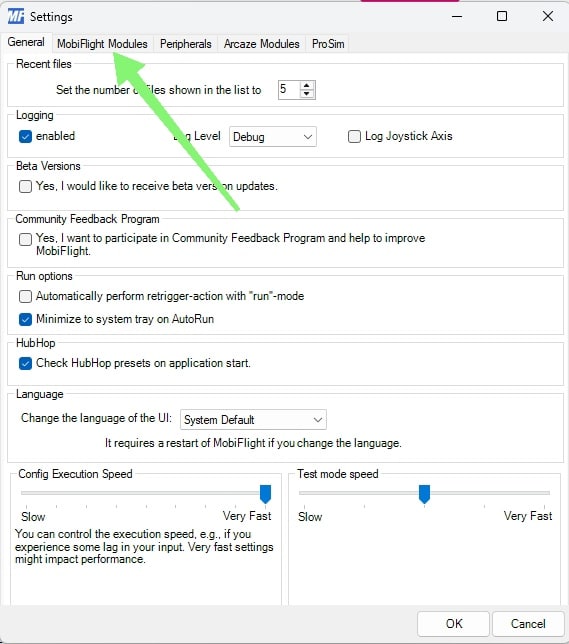
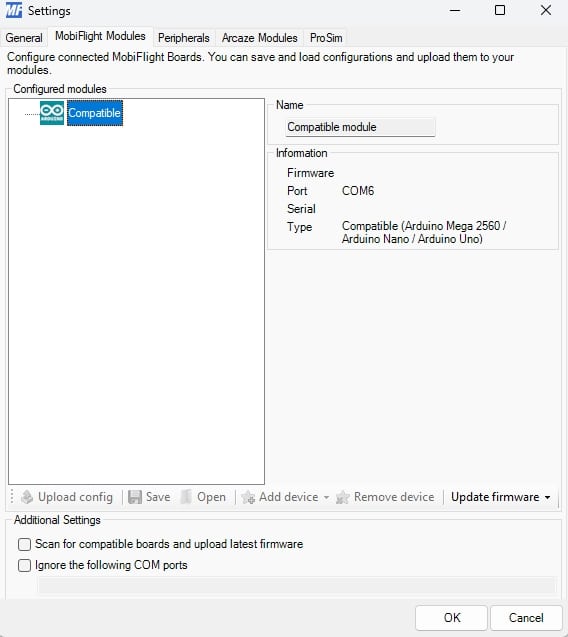
Open MobiFlight Connector, go to Extras > Settings, then click on the MobiFlight Modules tab. You will see a list of connected devices.
Note: If you have multiple devices connected, pay attention to the COM port numbers. If you are unsure which COM port belongs to which device, disconnect them one at a time and note which one disappears from the list.
Step 2 — Update Firmware
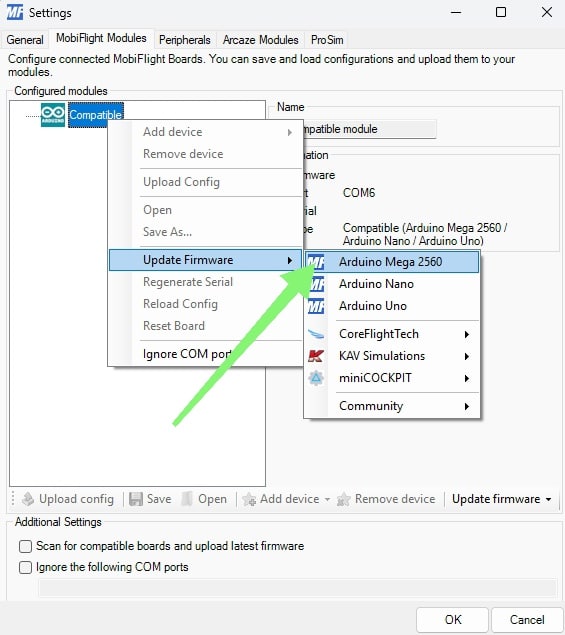
If your device appears as “Compatible” in the modules list, it means the MobiFlight firmware is not installed. Right click on the Compatible module and select Update Firmware > Arduino Mega 2560.
Important: If you have multiple devices connected and see more than one “Compatible” module, make sure you right click the correct one. Installing the wrong firmware on the wrong device will cause it to not work properly.
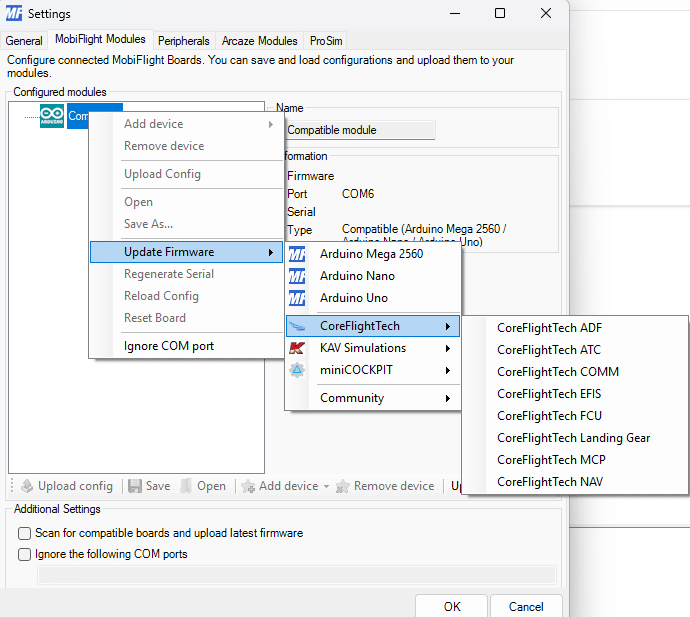
Note: This guide covers the Compact 737 Overhead Panel. For other CoreFlightTech products, select your device under the CoreFlightTech section in the Update Firmware menu instead of Arduino Mega 2560.
Once the firmware update is complete, the module should now appear as “MobiFlight Mega” instead of “Compatible”.
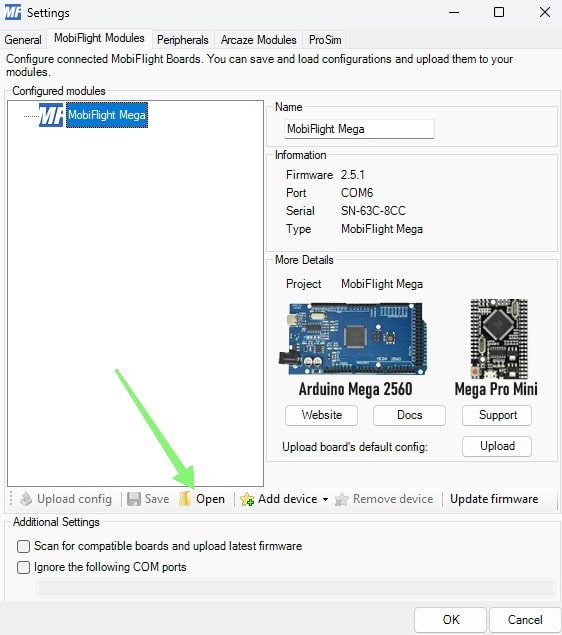
Back in MobiFlight, click on the “MobiFlight Mega” module, then click the Open button at the bottom. Select the downloaded .mfmc file.
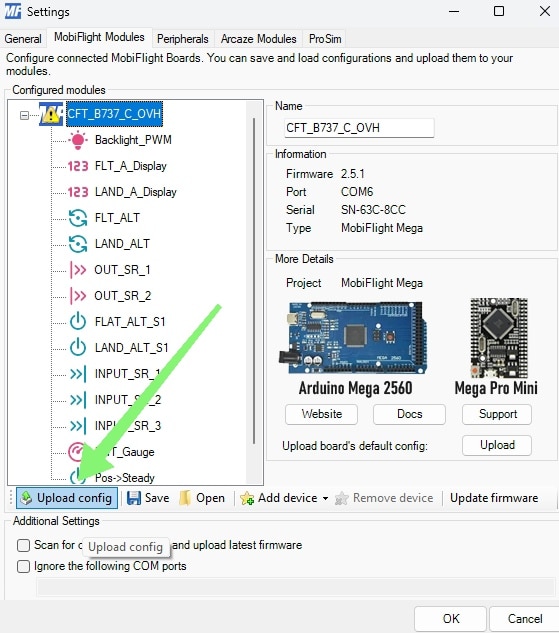
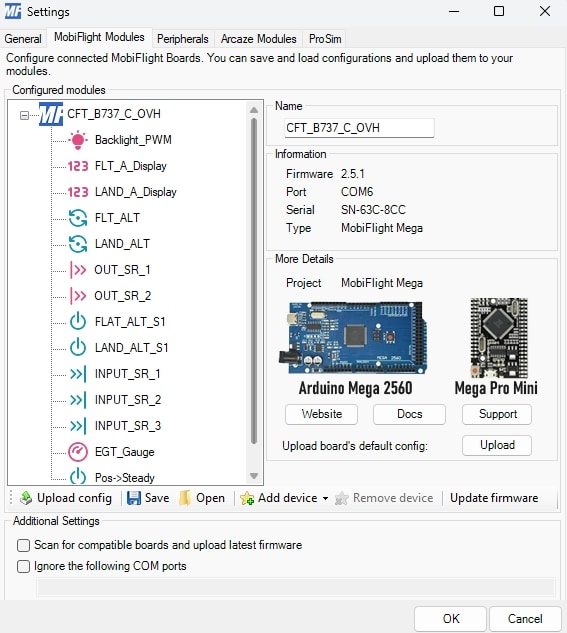
After loading the file, the module name will change to “CFT_B737_C_OVH” with a warning icon next to it. Click the Upload Config button at the bottom left, then confirm the upload when prompted.
Once the upload is complete, click OK to close the window. Your panel is now ready to use.